Prepare your files
- One file per icon or letter, all drawn on the same artboard size, such as 24 × 24. Fonterie scales the whole set by one amount, taken from the artboards, so a small drawing stays small beside a big one.
- Strokes are fine: they are turned into filled outlines with their width, caps and joins, so line icons such as Lucide, Feather and Tabler come in as they look. Dashed strokes come in solid.
- Text and images are skipped, and the review tells you which files had them. Clip paths and masks are ignored, so clipped artwork comes in whole. Turn text into outlines in your app before you export.
- A file with no artboard (no
viewBox,widthorheight) is sized by its drawing instead, and flagged so you can check it.
Make an icon font
- Start a new font and choose Icon font. Give it a name and choose Create the icon font. An icon font starts empty.
- On the Add icons tab, choose Choose SVG files or Choose a folder, or drop the files on the page.
- Check the grid. Every icon is shown at the size it will have in the font. If they are all too big or too small, use Size; to raise or lower the whole set, use Move up or down.
- Fix any name marked in red, or choose Leave out on a file you don’t want. Then add them.
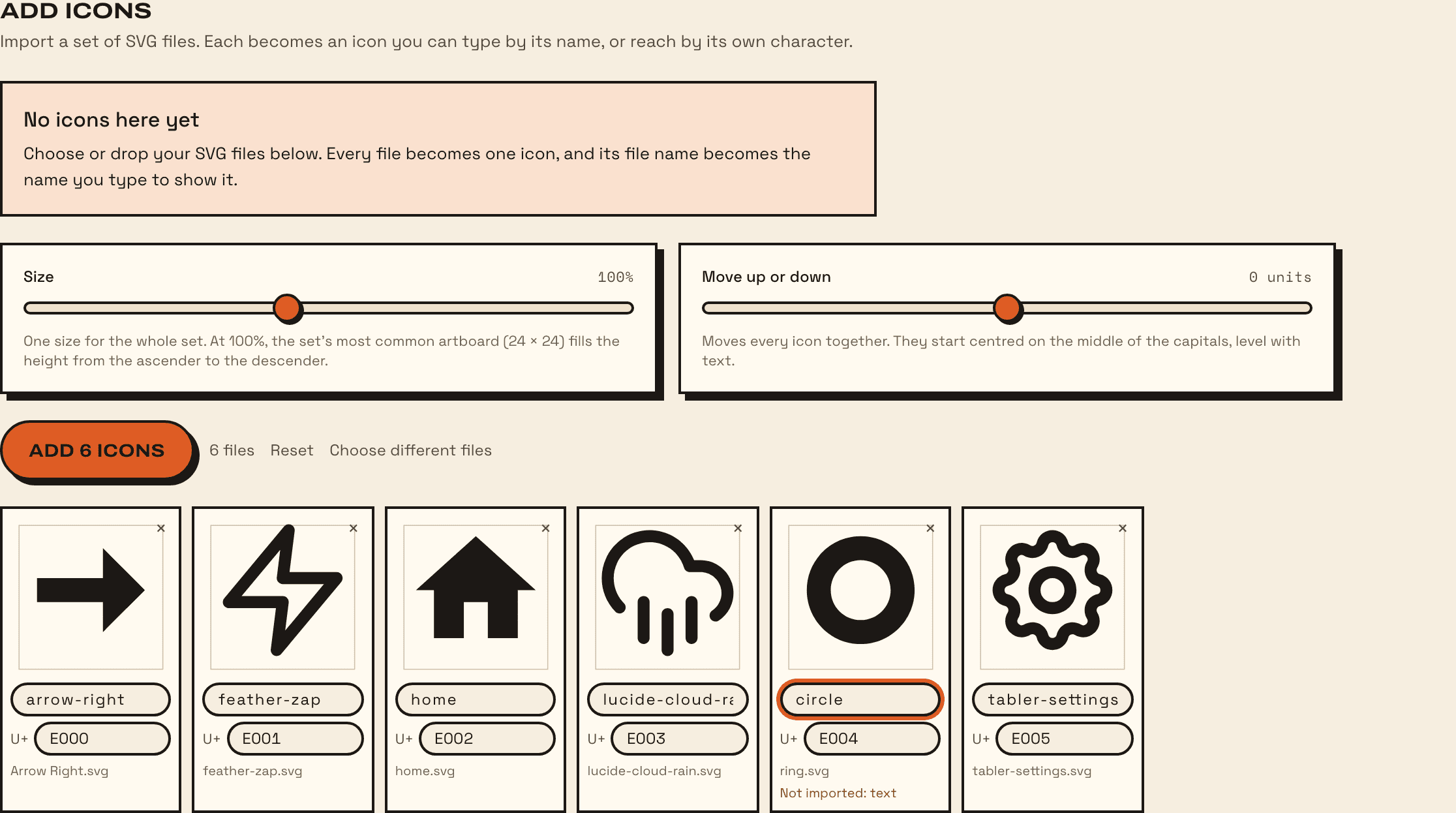
Import an edited home.svg again and it replaces the icon called home, keeping its name and character. Fonterie asks first, and never makes a second home.
Names and characters
Each icon’s name comes from its file name: Arrow Left.svg becomes arrow-left. Names use a–z, 0–9, hyphens and underscores, with at least two characters. Typing the name with the font shows the icon, the way Material Symbols and Font Awesome work.
Each icon also gets its own character in Unicode’s private-use area, from U+E000 up. Apps that pick icons by code use it. You can change a name or a character in the review, or later on the Characters tab.
Use the icons
In Preview, type an icon’s name in Type an icon’s name to see it. Below it, every icon is listed with its name and character; click either to copy it.
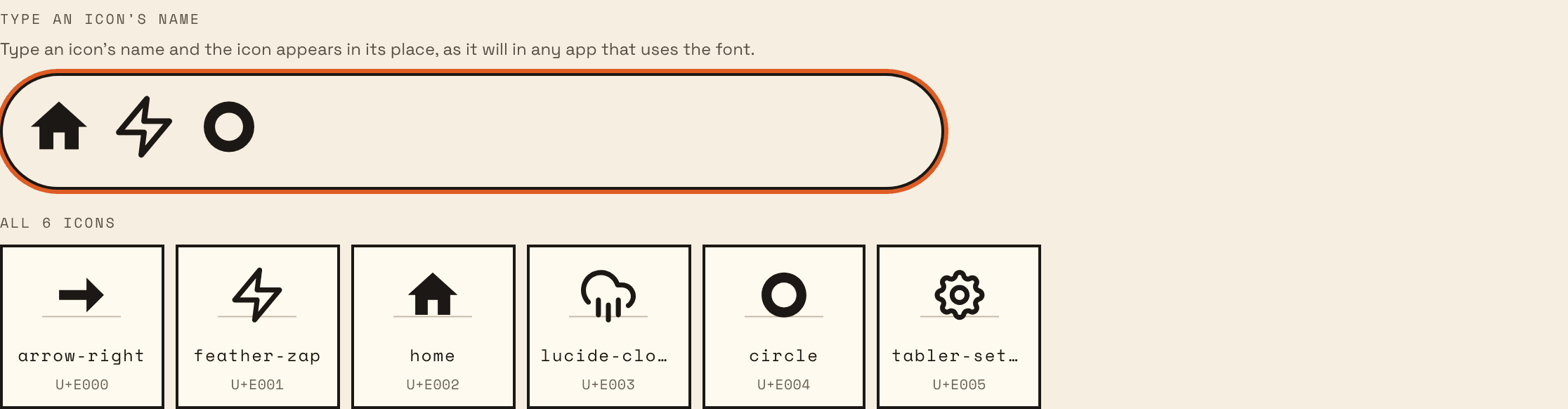
On a web page, load the font with an @font-face rule and set some text in it: <span class="icons">home</span> shows the house. Ligatures are on by default in every browser; if your styles turn them off, add font-feature-settings: "liga". You can also write the character instead: .
Letters for a handwriting font
In a handwriting font, Import SVG files is on the Add handwriting tab. Name each file after its character:
- The character itself:
a.svg,א.svg,?.svg. - Its code:
uni05D0.svgoru+0041.svg. - Its glyph name:
alef.svg,finalkaf.svg,zero.svg. - For capitals and small letters, which most computers can’t keep apart by name:
A_upper.svganda_lower.svg.
The artboard’s height becomes the space from the ascender to the descender, so letters drawn on one artboard keep their baseline and their heights. If your baseline isn’t where the font’s is, move it with Baseline. A file Fonterie can’t match says Not matched: click it and type the character. A letter the font already has is added as an alternate.