Export
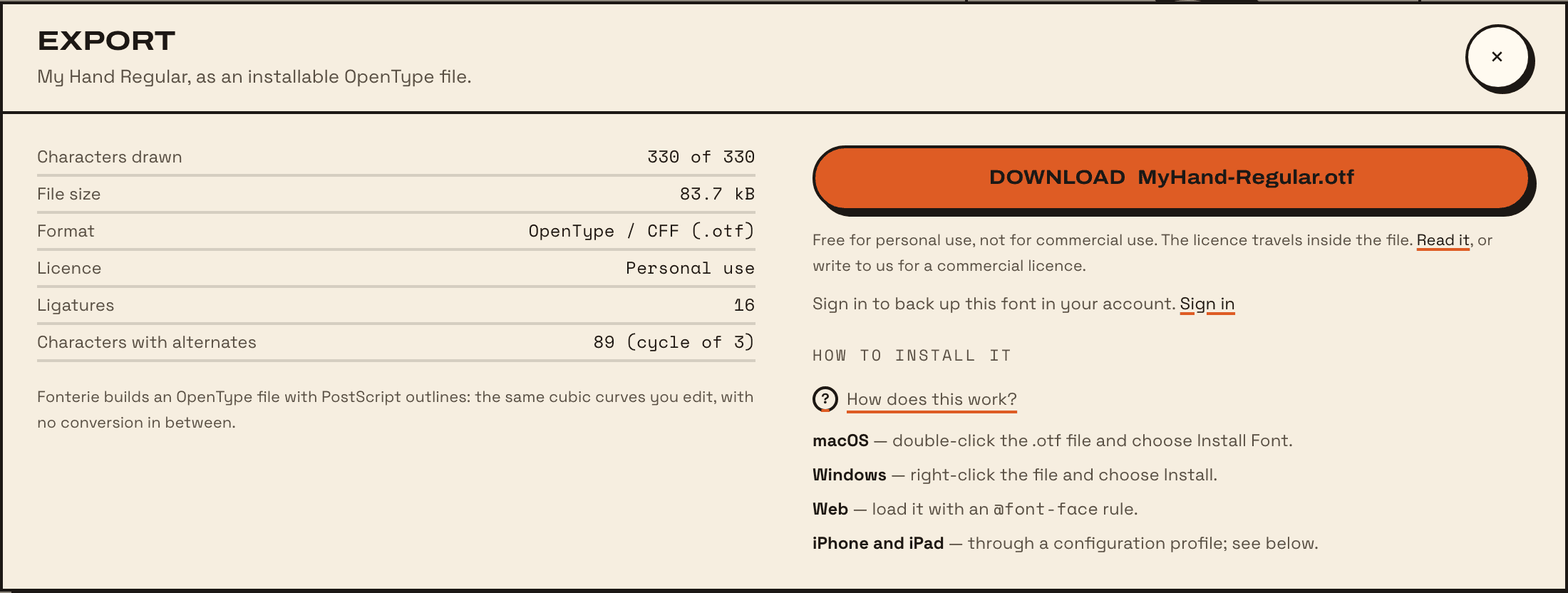
Choose Export in the font’s header. The dialog sums up the font (Characters drawn, Ligatures, Characters with alternates) and warns you before the download if letters are missing. You can export anyway: missing characters fall back to another font. Then download the .otf file.
Mac
Double-click the .otf file. Font Book opens it; choose Install Font. Apps that are already open may need restarting to see it.
Windows
Right-click the file and choose Install (or Install for all users). Restart any app that was open.
iPhone and iPad
- Open the studio on the iPhone or iPad itself, in Safari, and choose Export. Other iOS browsers can download the profile but can’t hand it to Settings.
- Choose Install the font and allow the download.
- Open Settings. A “Profile Downloaded” row appears near the top; if it doesn’t, look in General › VPN & Device Management.
- Tap the profile, then Install, and enter your passcode.
The font is now in Pages, Keynote, Mail, Notes and anything else with a font picker. On a computer, Save the profile instead and AirDrop it to the device.
Installing a new export of the same font replaces the one already on the device, rather than adding a second copy. Export again whenever you have changed the font.
Using it in your apps
- Word: pick the font by its name in the font list. Turn on ligatures and contextual alternates under Font, then Advanced, so joined letters and rotating versions show (see ligatures).
- Pages and Keynote: in the font list, on a Mac and on an iPhone or iPad.
- Canva: upload the .otf file to the fonts in your Brand Kit (uploading fonts needs a paid Canva plan). It then appears in the font list of every design.
- Figma: the desktop app sees installed fonts straight away. In a browser, install Figma’s font installer once.
Updating the font
Changed something? Export again and install the new file the same way. A Mac or PC asks to replace the old one; say yes. Then restart the apps using it.